You found the product on Coupang. The next screen you need is not a Korean checkout form. It is Telegram.
Open Staydrop on Telegram, connect an email once, and send the Coupang product link. Staydrop turns those links into a cart inside Telegram. When the cart is ready, the order continues on Staydrop’s website for your accommodation details, final review, and payment.
This guide follows that route screen by screen using the actual Staydrop, Telegram, Coupang, and payment pages.
1. Verify your email once
Open @staydrop_bot and start the bot. On your first visit, tap Verify email. The Staydrop Mini App opens inside Telegram.
Enter the address where you want to receive order updates and tap Send verification email. Open the message from Staydrop, follow the verification link, then return to Telegram. If the Mini App has not updated yet, tap I verified — refresh.
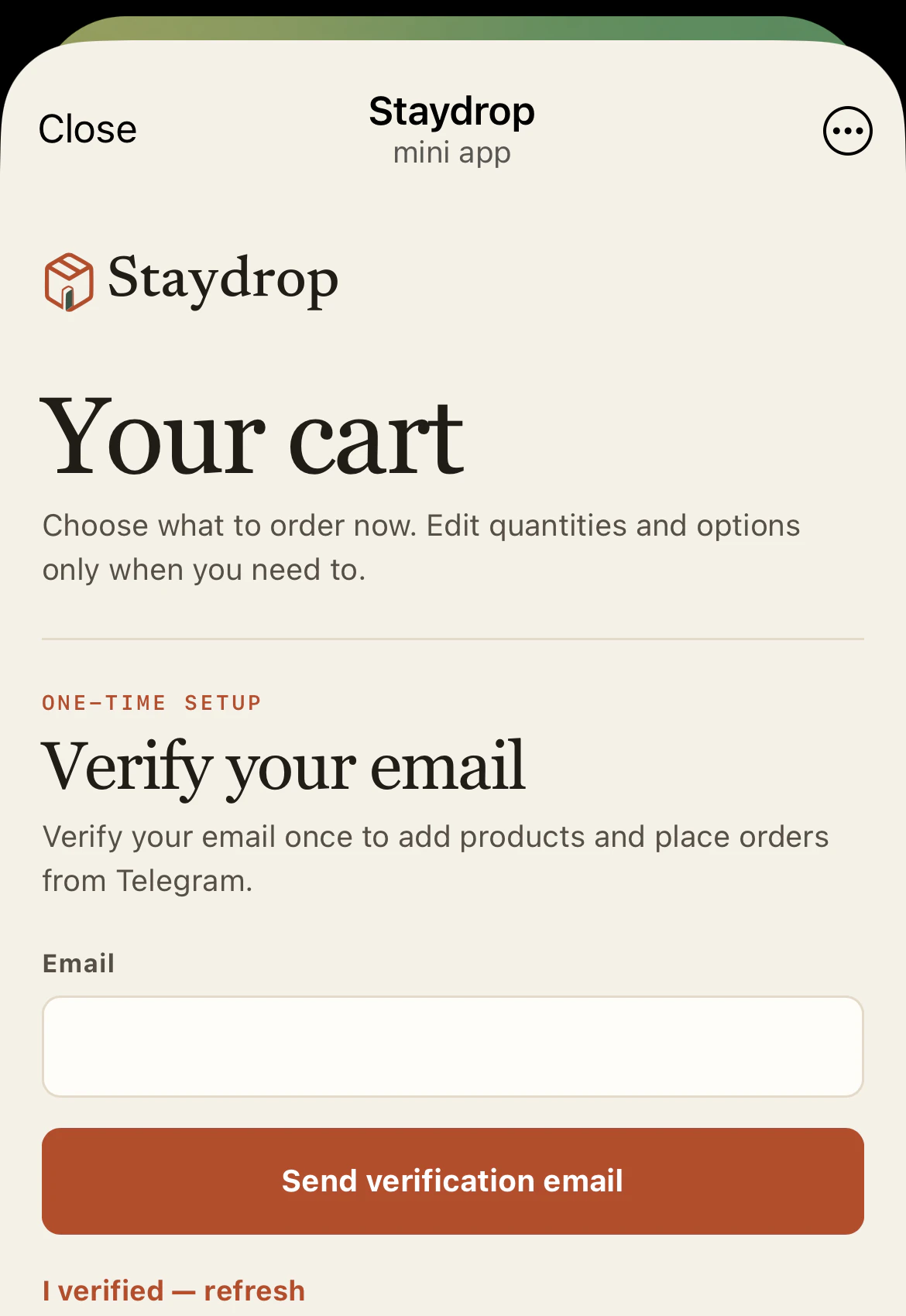
The verified email stays connected to your Telegram account, so later orders can begin with a product link. You do not need to repeat this form for every cart.
2. Share the exact Coupang product
Choose the size, color, count, or bundle on Coupang before sharing. The bot receives the product URL, so the selected product page should already show what you intend to order.
Tap the share icon on the Coupang product page.
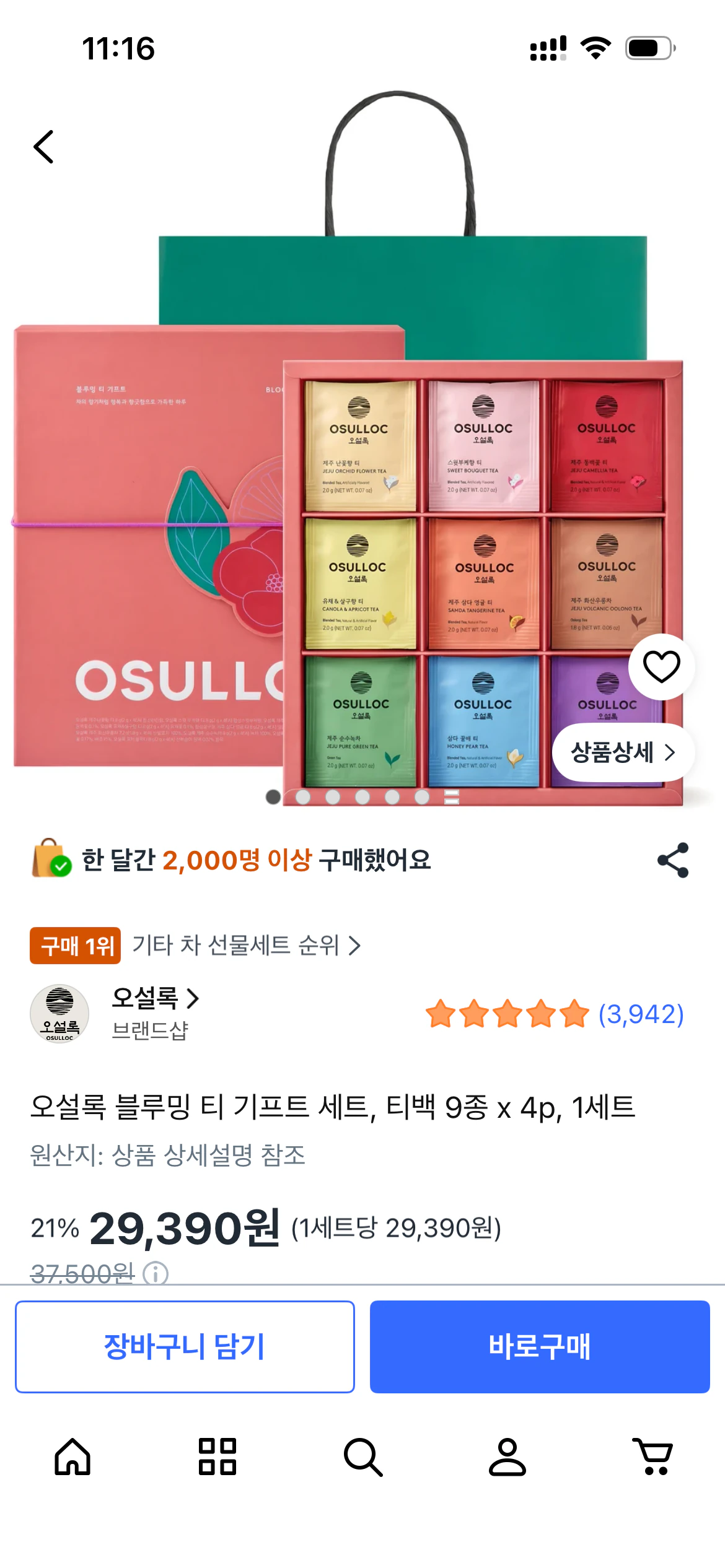
On iPhone, choose Telegram from the iOS share sheet. Android looks different, but the next choice is the same. You can also copy the Coupang URL and paste it into the Staydrop chat.
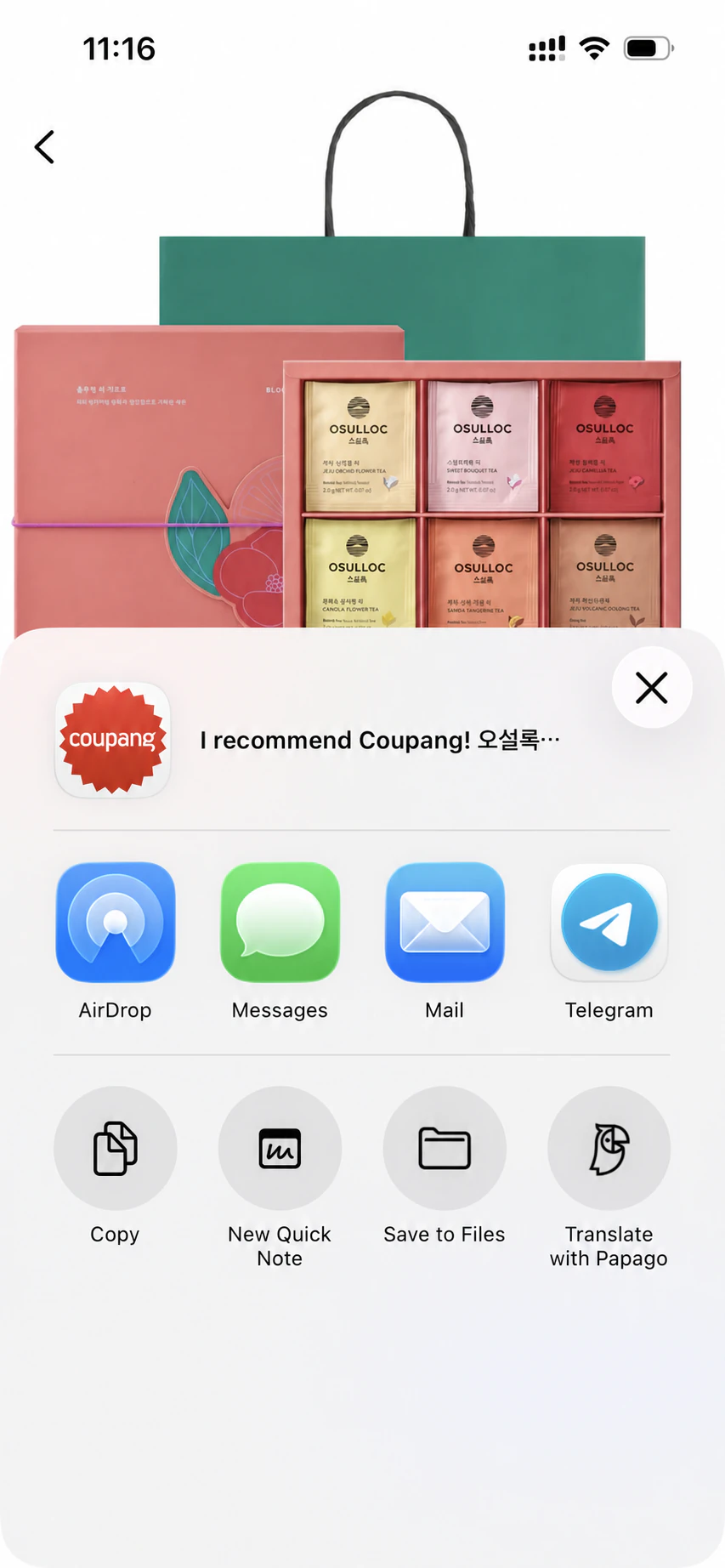
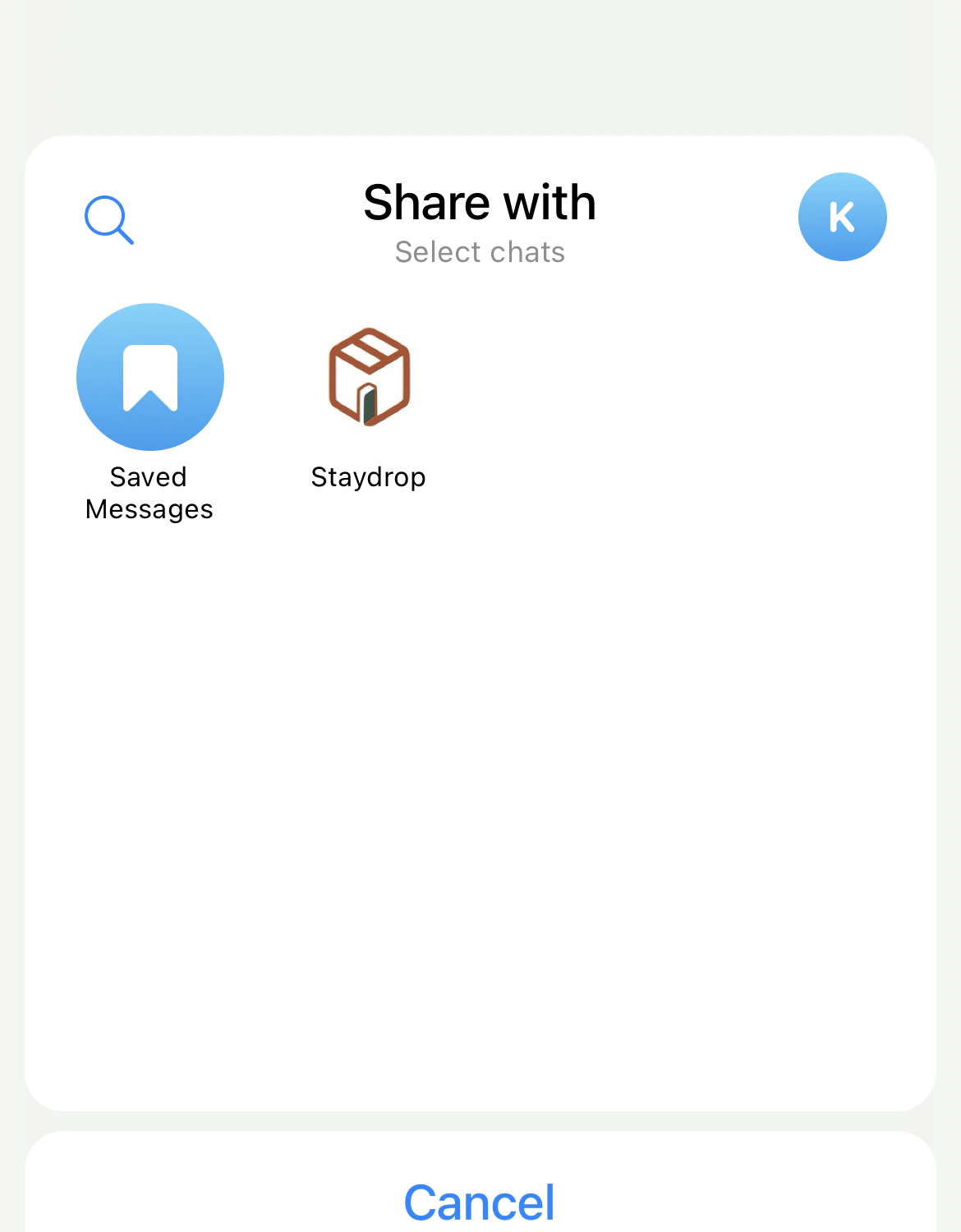
Inside Telegram, select Staydrop as the chat receiving the link.
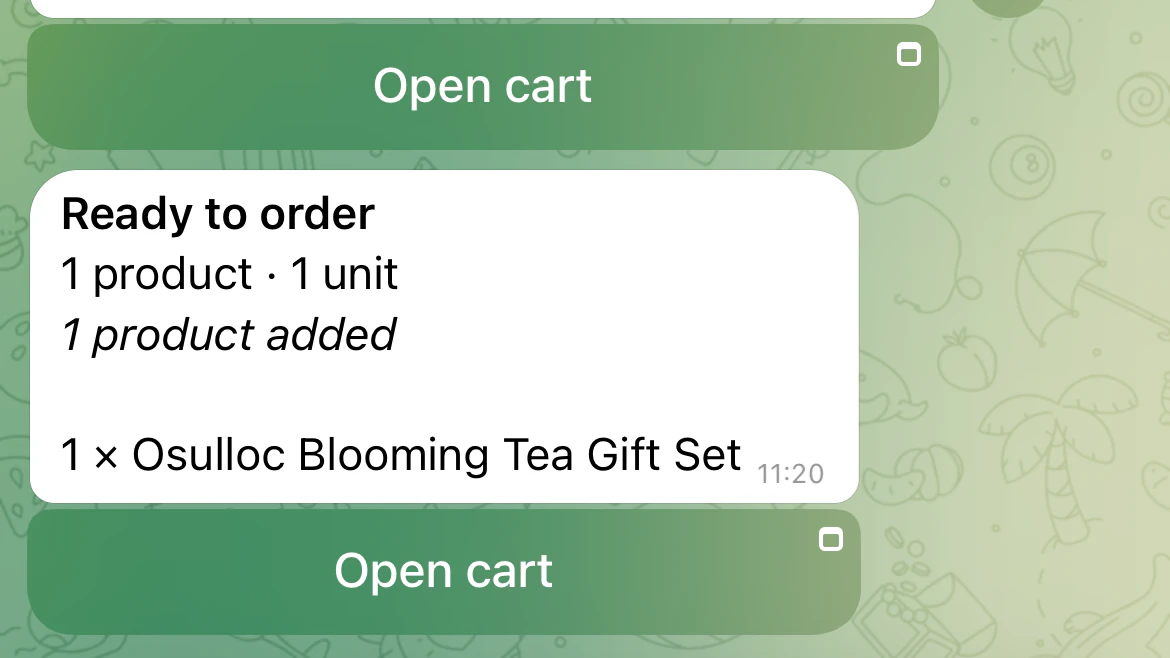
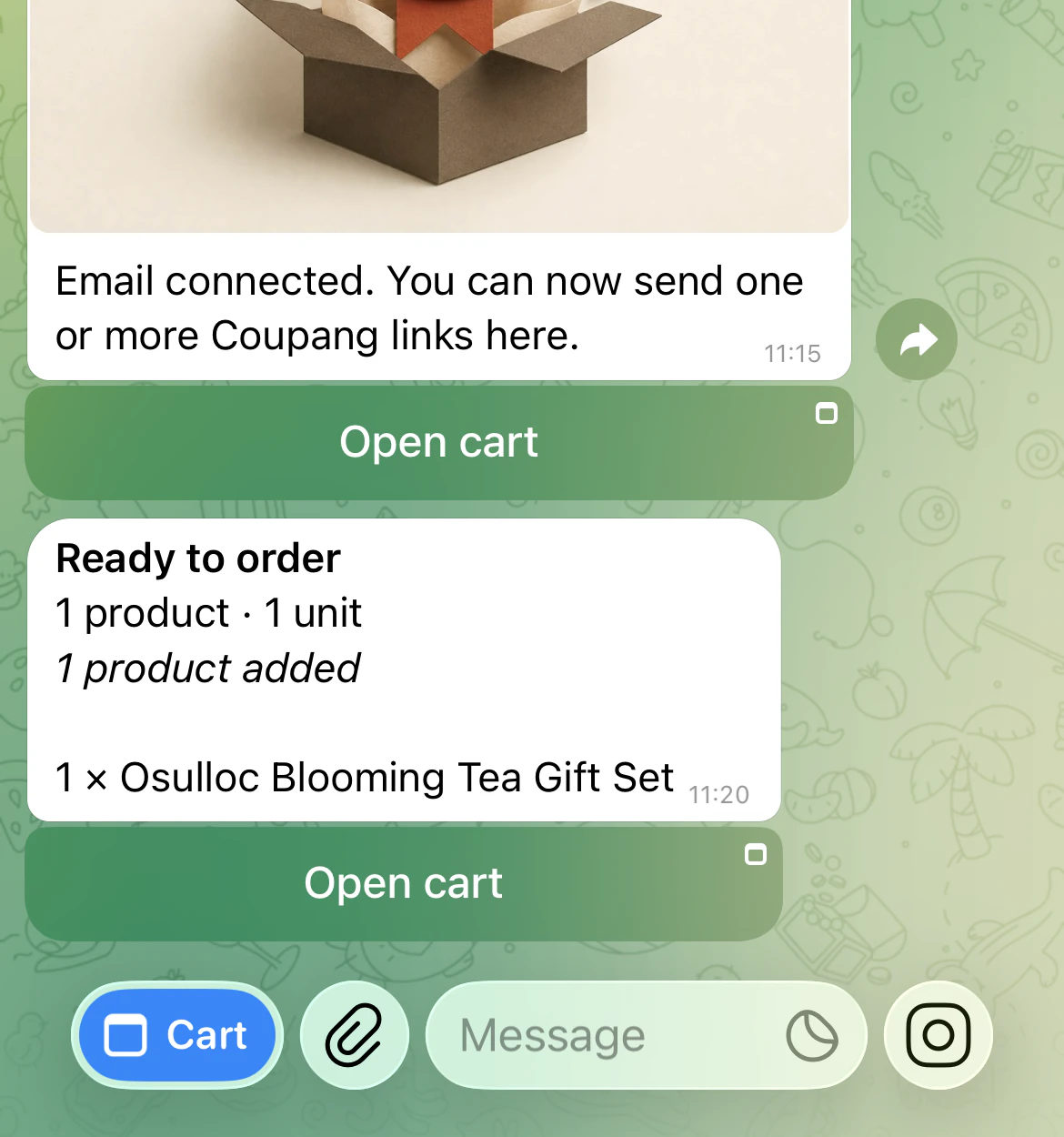
When Staydrop accepts the link, the chat shows Ready to order, the number of products added, and an Open cart button. Send another Coupang link if you want to add more products to the same cart.
For the smoothest order, check the delivery badge and expected arrival date on Coupang before sending the link. Rocket Fresh groceries, Rocket Global imports, ordinary marketplace delivery, and products whose delivery cannot be confirmed may not be available through Staydrop. Our Coupang guide for travelers explains the delivery signals to look for.
3. Open the cart and remove exceptions
Tap Open cart. A ready cart shows each product, quantity, and Edit and Remove actions. Select the products you want in this order, use Edit for quantity or an option note, and tap Proceed when the cart is clean.
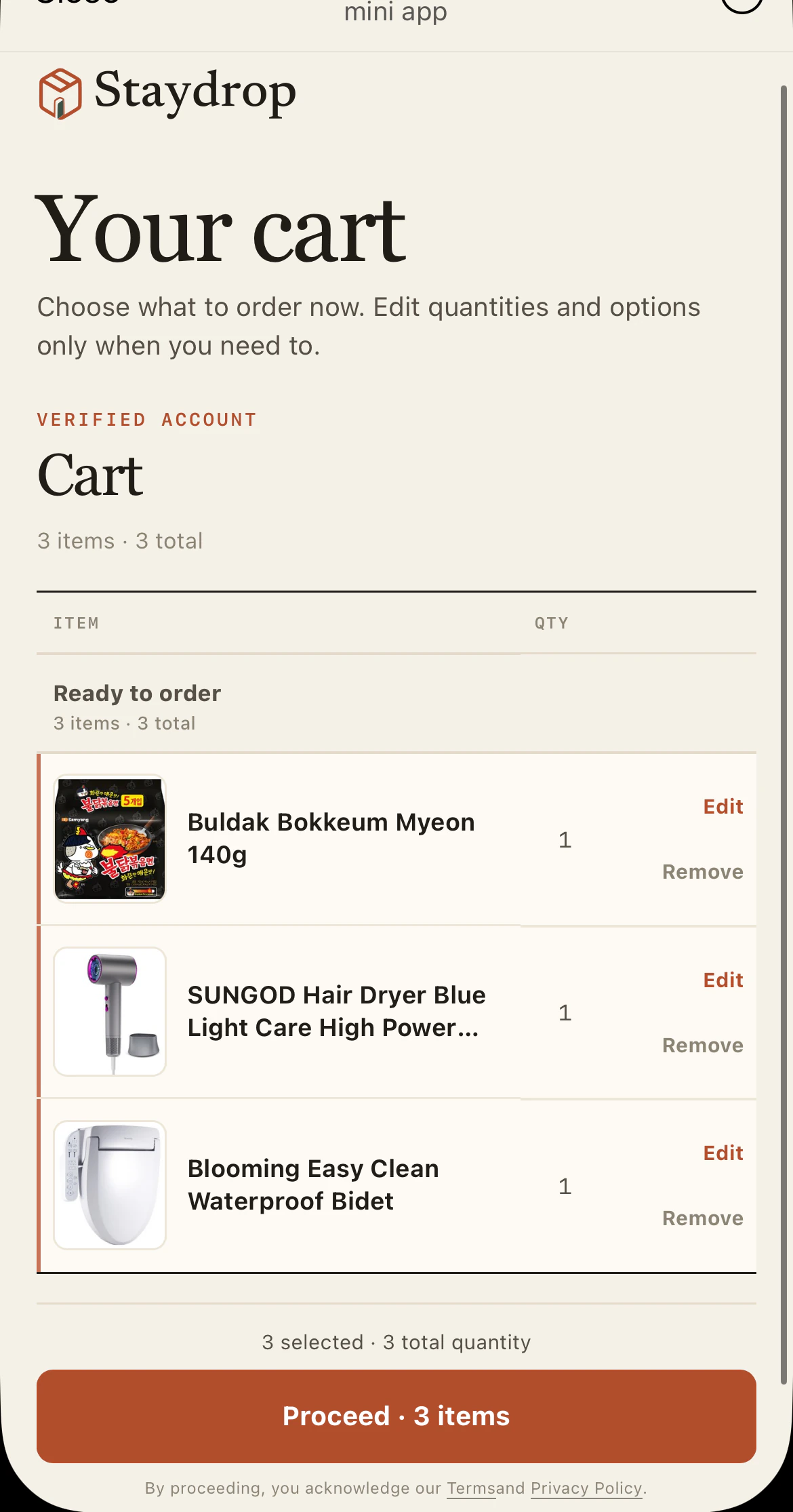
The Mini App can sort products into three sections:
- Ready to order — Staydrop identified the product and a supported delivery type.
- Checking delivery — the product preview is still being completed.
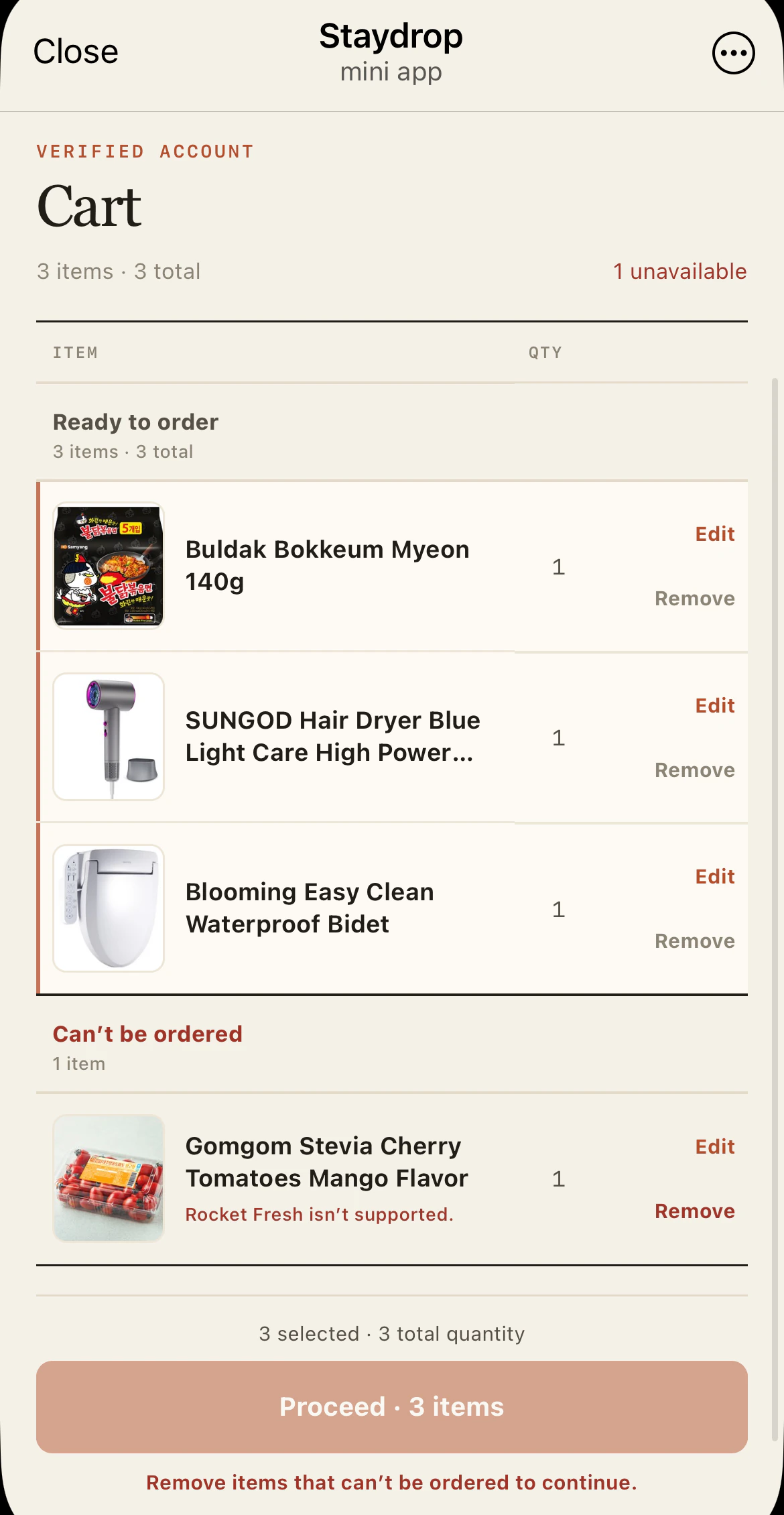
- Can’t be ordered — the product is unsupported, unavailable, or its delivery could not be confirmed.
If any row is in Can’t be ordered, the Proceed button stays disabled until you remove that row. The example below shows a Rocket Fresh product separated from the three ready items.
If an item is still under Checking delivery, wait for the result before proceeding. The Telegram cart is a product check, not the final quote: Staydrop checks price, stock, option, and delivery timing again on the order page.
4. Create the order and open its details
Once every remaining product is ready, tap Proceed. Staydrop creates an order and normally opens the web order page automatically. If the page does not open, tap Enter order details.
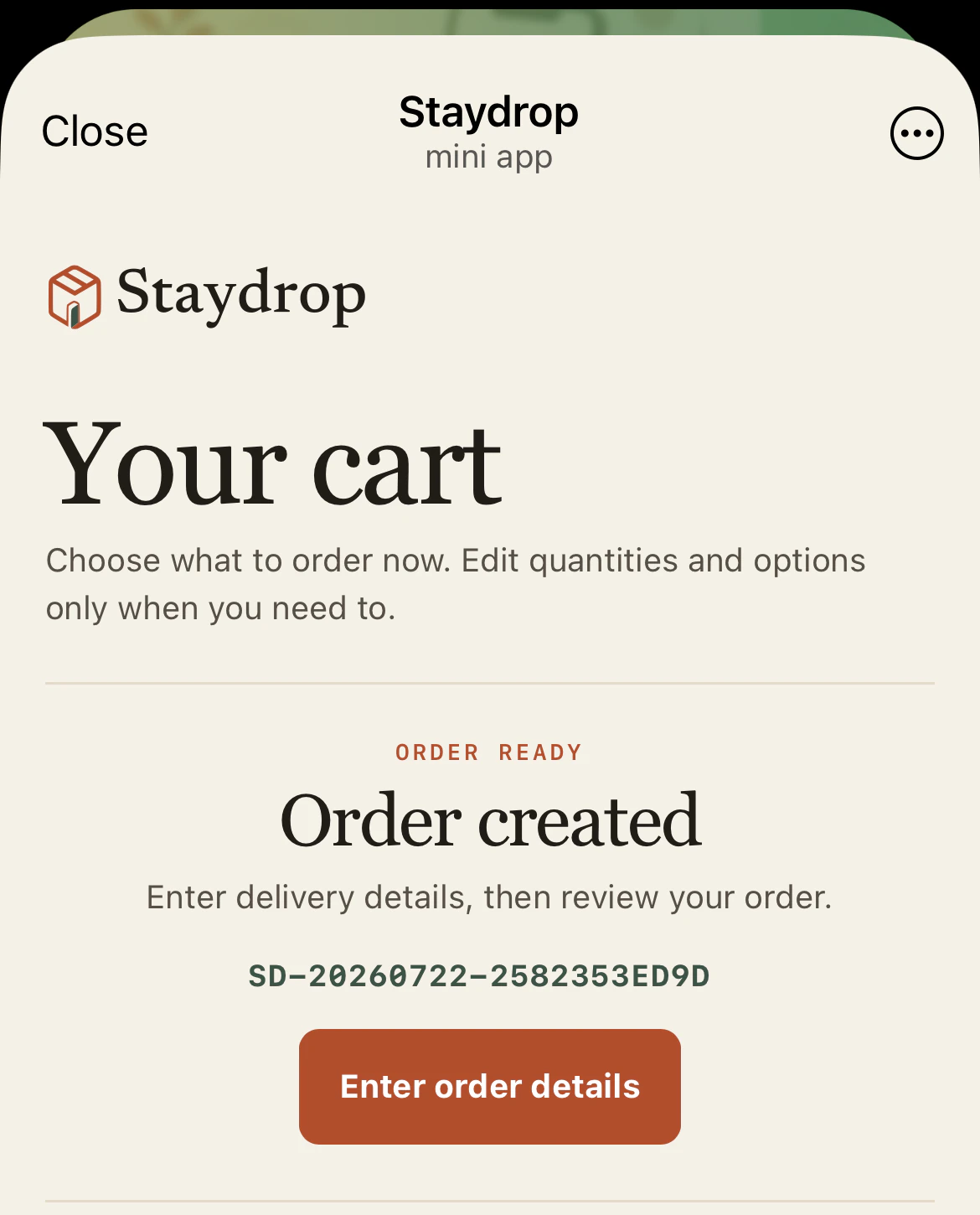
The cart’s job is now finished. Products have been carried over, and the website asks where and when they should arrive.
5. Add the accommodation details
Enter the full name used on the reservation, choose the accommodation, confirm its address, and add check-in and checkout dates. Add a room number only if you already have one.
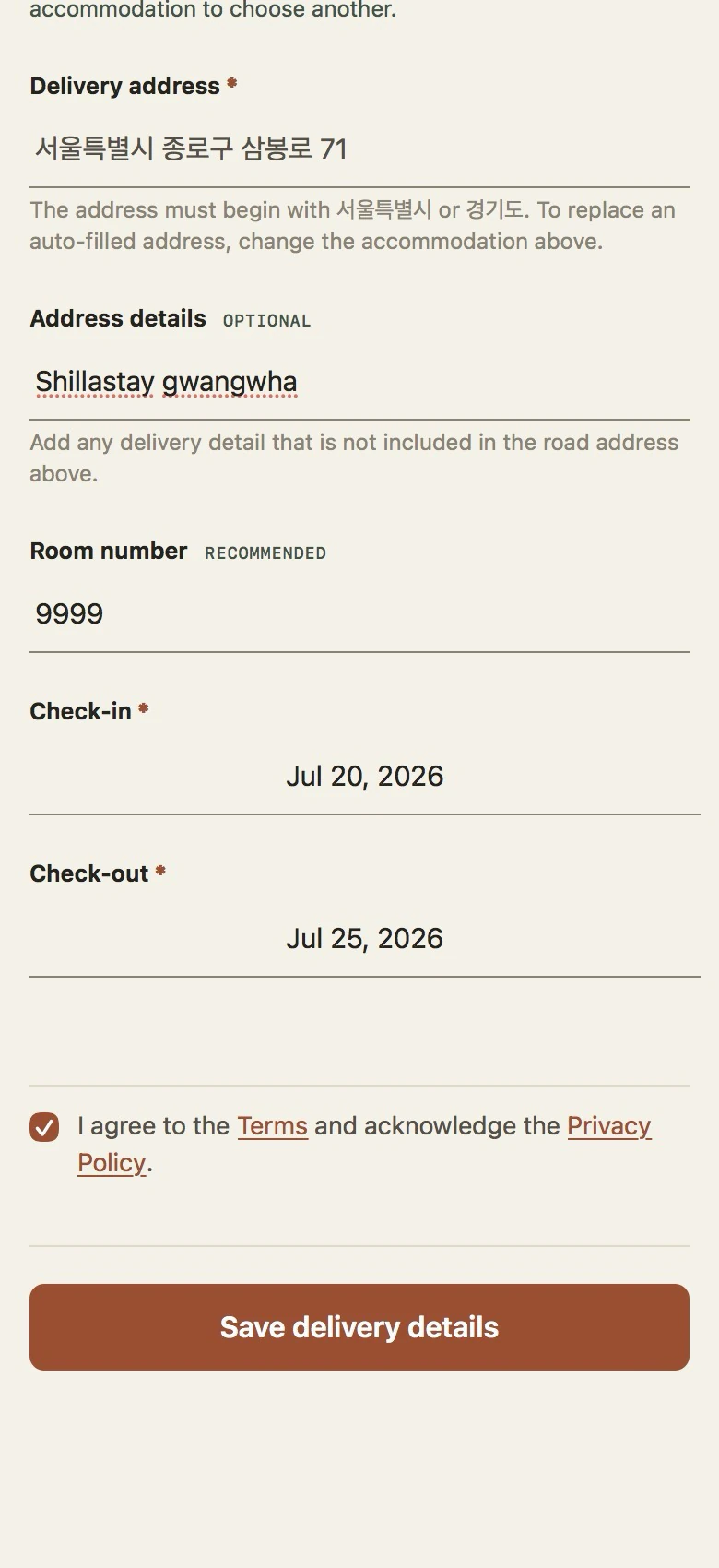
Staydrop currently delivers to accommodations in Seoul and Gyeonggi Province. Ask the property whether it will receive a parcel before ordering. The recipient name should match the booking so the front desk can identify the guest. Our hotel package guide has the exact questions to ask.
6. Review the quote, then pay
The final review page brings the selected items, delivery details, and estimated total together. Check every product link, quantity, note, address, and date before confirming.
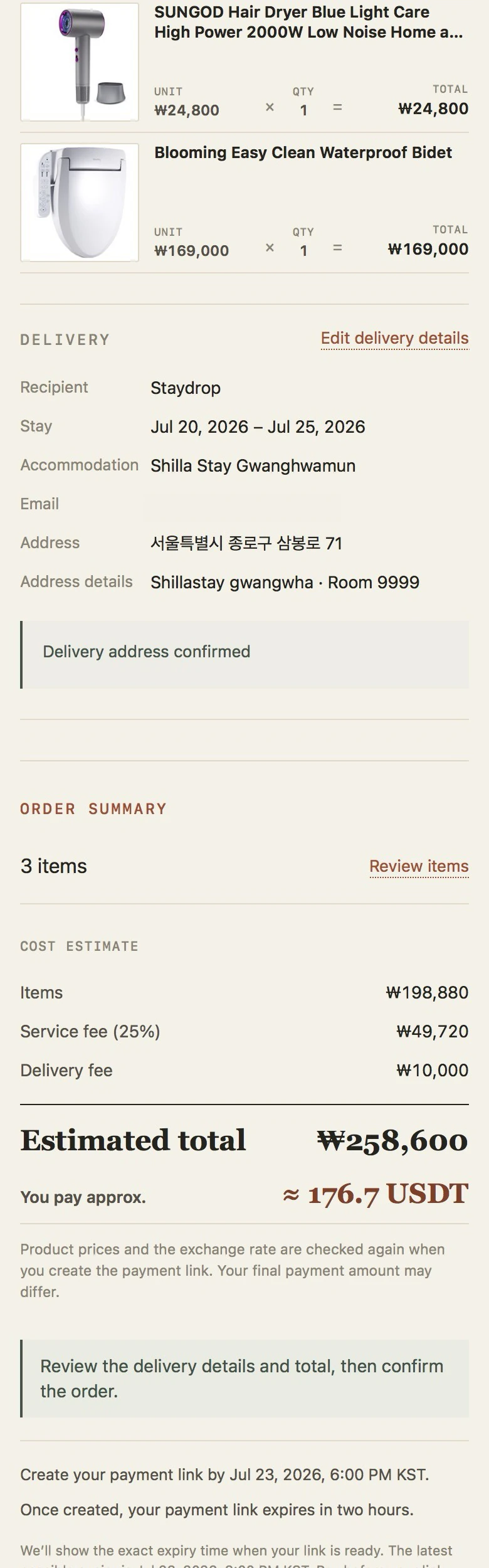
The current pricing on staydrop.me has a ₩50,000 minimum item subtotal, a 25% service fee, and ₩10,000 hotel delivery. The figures in the screenshot belong to the example order; your live quote will be different.
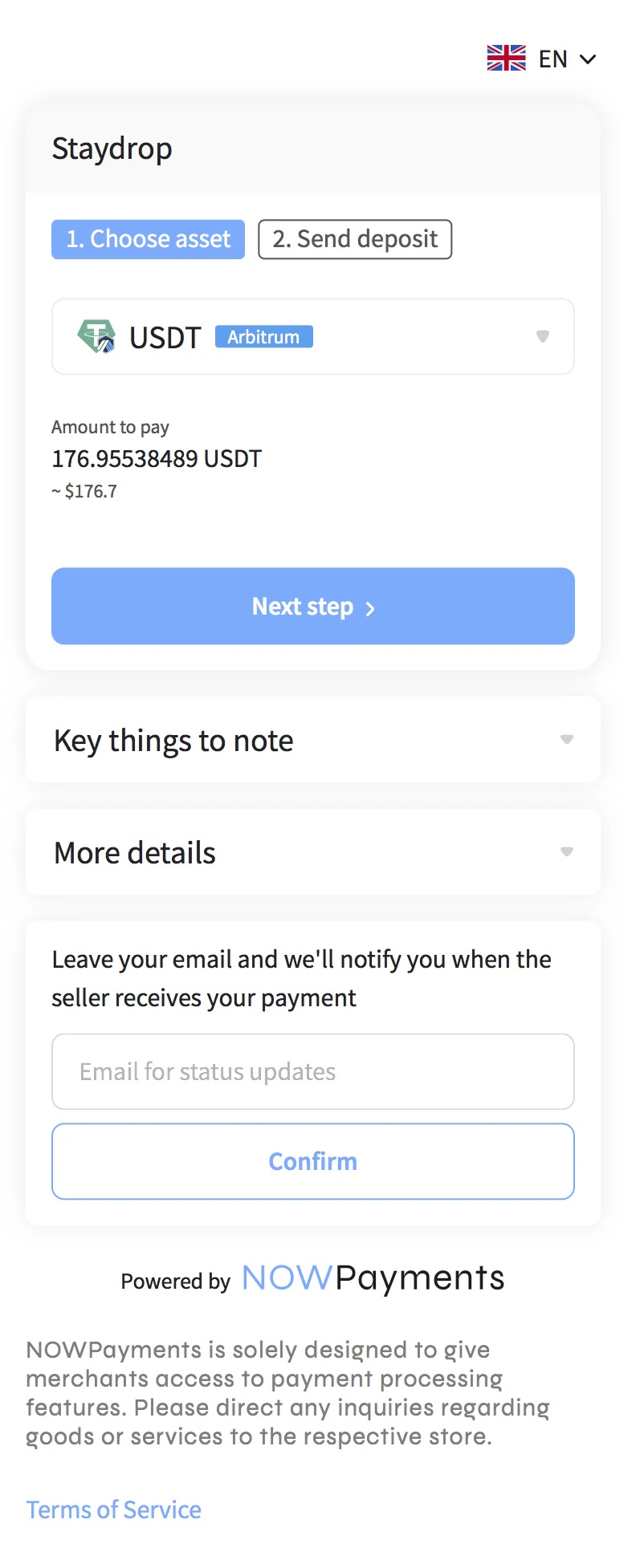
After confirmation, open the payment link and choose one of the supported USDT or USDC assets and networks shown there. Check the asset, network, amount, and expiry before sending funds. The example below uses USDT on Arbitrum.
The short version for your next order
The first order includes email verification. The next one starts at the Coupang share button:
- Select the exact product option on Coupang.
- Share it to Telegram and choose Staydrop.
- Open the cart and remove anything under Can’t be ordered.
- Tap Proceed, then Enter order details if the page does not open automatically.
- Enter the reservation name, accommodation, and stay dates.
- Review the items, fees, delivery details, payment asset, and network.
That is the whole route: Coupang supplies the product link, Telegram holds the cart, and the Staydrop order page handles the hotel and payment.
Open Staydrop on Telegram and send the first product when you are ready.
Flow and pricing checked July 23, 2026. All images in this guide are crops of actual Staydrop, Telegram, Coupang, iOS, and payment screens from the documented order flow. Contact suggestions and other personal information were excluded. Product availability, delivery dates, prices, payment assets, and networks can change; review the live order before paying.